Strikethrough in Google Docs
Select your text, open the Format menu, choose Text, then click Strikethrough. The line appears immediately, and repeating the steps removes it. This is the most discoverable method for anyone new to the document.
The Docs keyboard shortcut
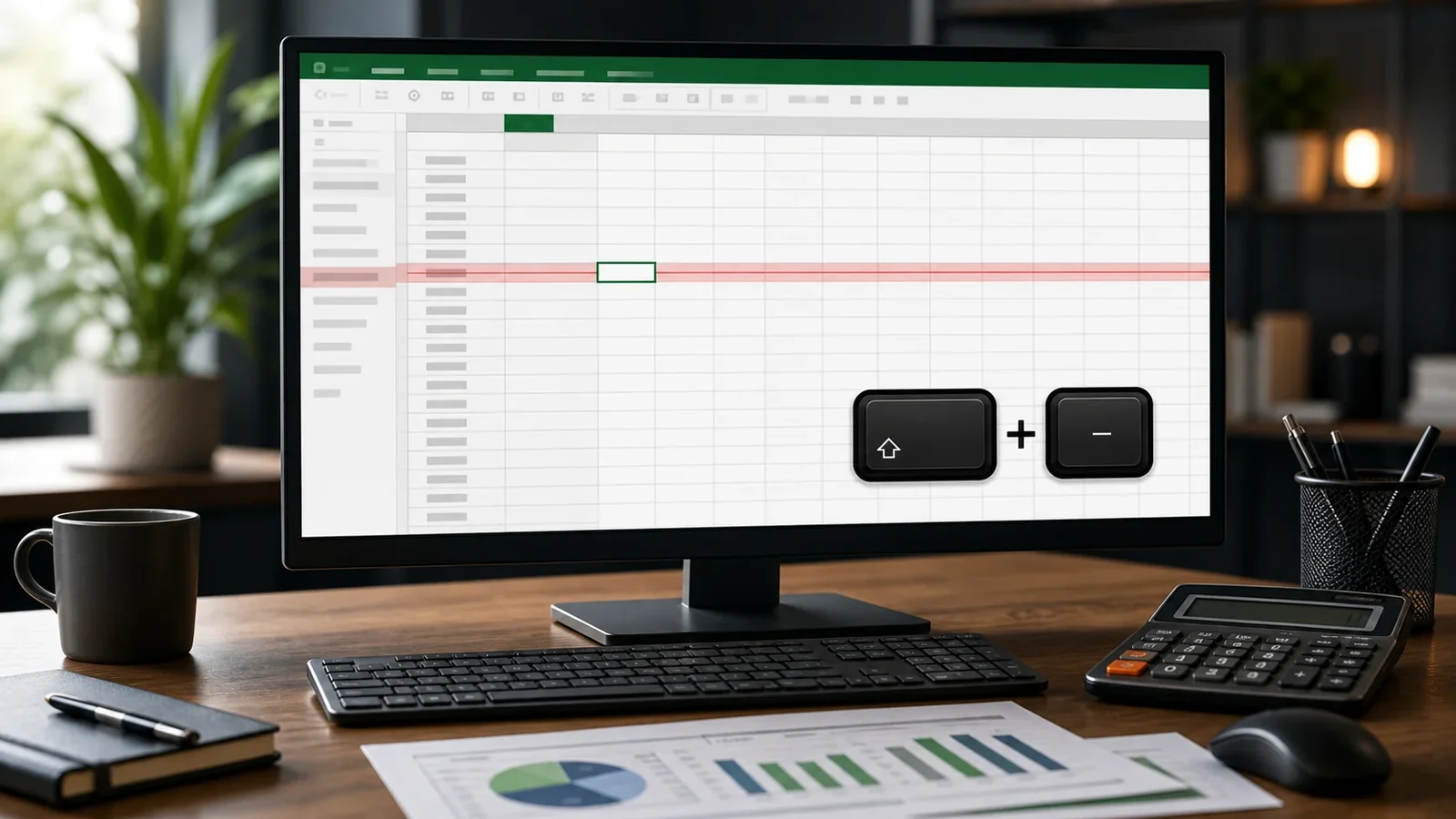
For a faster route, select the text and press Alt plus Shift plus 5 on Windows and ChromeOS, or Command plus Shift plus X on many Mac setups. The shortcut toggles the line on and off.
Strikethrough in Google Sheets
Sheets uses the same Alt plus Shift plus 5 shortcut. You can also apply it from the Format menu under Text. It is handy for marking completed rows in a checklist or noting outdated figures.
Taking it outside Google
Strikethrough applied in Docs or Sheets is document formatting. If you copy the text into a plain text field such as a chat box, the line will not follow. For portable crossed out text, generate the Unicode version and paste that instead.
Frequently Asked Questions
Alt plus Shift plus 5 on Windows and ChromeOS, and Command plus Shift plus X on many Macs.
Yes. Select the cells or the entire row, then apply strikethrough from the Format menu or with the shortcut.
It carries over into rich text emails, but not into plain text fields. Use Unicode strikethrough for plain text.
Yes. The mobile app may place the option in its formatting menu instead of showing the desktop keyboard shortcut.
It stays when the destination accepts rich-text formatting. For plain-text apps, use Unicode strikethrough so the line travels with the characters.
Use it sparingly, keep the phrase short, and provide the intended meaning in nearby plain text because screen readers may not announce the visual line.