The built in WhatsApp shortcut
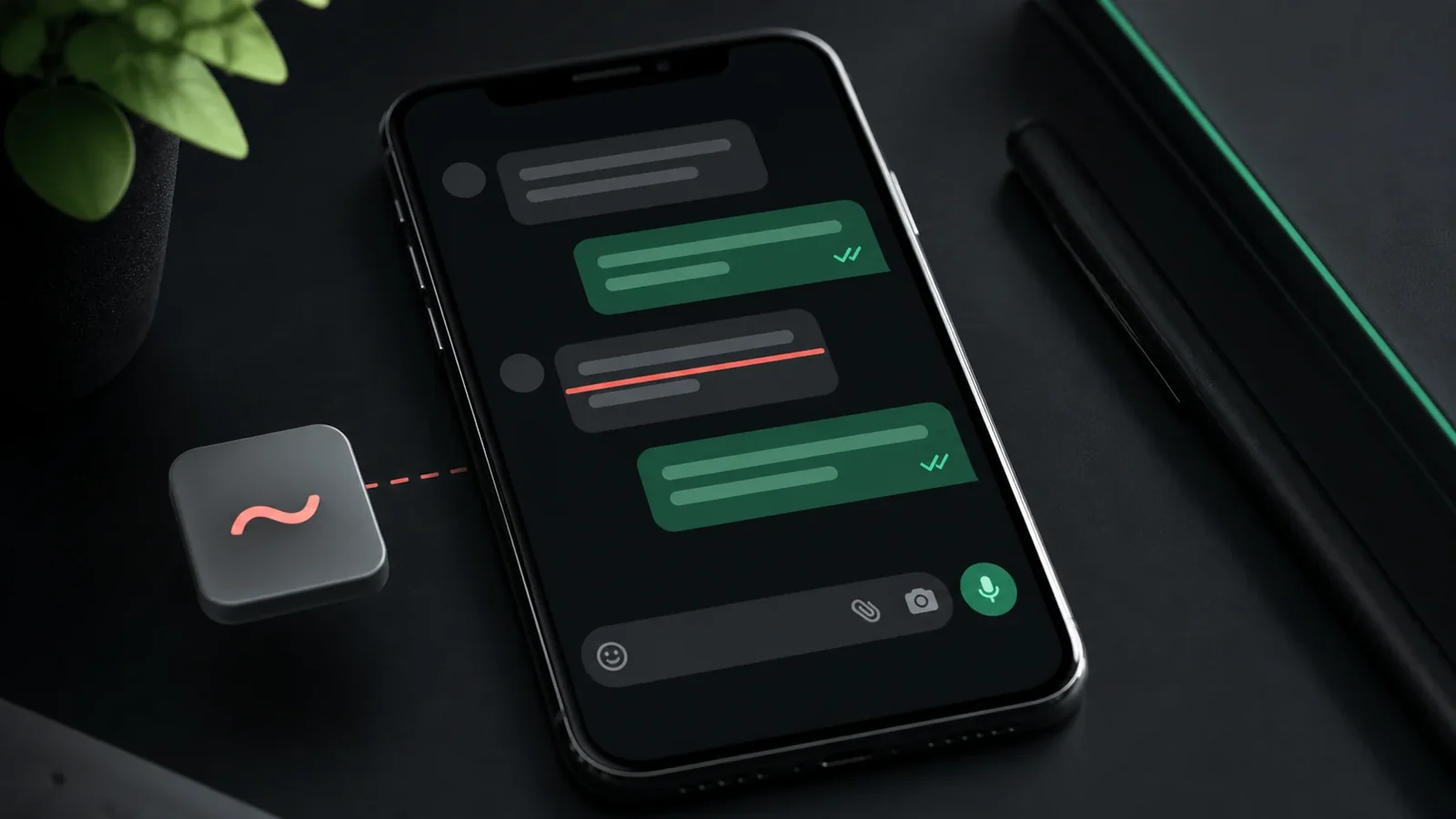
WhatsApp supports basic text formatting inside any chat. To cross out a word, wrap it in a single tilde on each side. Typing ~like this~ sends the words with a line through them. It works in individual chats, groups, and captions on photos.
On many versions you can also select the text, then choose the formatting option from the pop up menu that appears, and pick strikethrough from the list.
When to use the generator instead
The built in shortcut only produces one style, and it only works inside WhatsApp. If you want a slash through look, a tilde overlay, or text that keeps its crossed out appearance when forwarded to an app without formatting, the generator is the better tool.
Simply type your text on our homepage, copy the style you like, and paste it into the WhatsApp message box. It behaves like normal text once it is there.
Strikethrough in status and your name
The tilde shortcut works in the message field, but places like your WhatsApp name or an About line may not apply the same formatting. In those spots, paste Unicode strikethrough from the generator so the effect is carried by the characters themselves.
Practical tips
Keep struck text short so it stays readable, and preview it before sending to an important contact, since a few older phones display combining marks imperfectly. If a recipient sees boxes, ask them to update their app or try a different style.
Frequently Asked Questions
A single tilde on each side of the text, like ~word~. That is different from Discord and Slack, which use double tildes.
Usually the tildes were not placed directly against the text, or an extra space slipped in. Make sure there is no space between the tilde and the first or last character.
The message shortcut may not apply there. Paste Unicode strikethrough from the generator so the crossed out look is part of the text.
Yes. You can create and paste it on Android, iPhone, tablets, and desktop devices without installing a special font.
Yes. Unicode combining marks travel with the letters, although an older app or unsupported font may render them differently.
Use it sparingly, keep the phrase short, and provide the intended meaning in nearby plain text because screen readers may not announce the visual line.